 Local Photo Restore
Black-and-white photos: enhance or colorize?
Enhancing a black-and-white photo makes it clearer and gives it better contrast using information already in the image. Colorizing adds colors a model predicts; they may look natural but aren’t a record of the real scene. Local Photo Restore enhances black-and-white photos and keeps them black and white. For colorization, use a tool such as MyHeritage In Color or Photoshop’s Colorize filter.
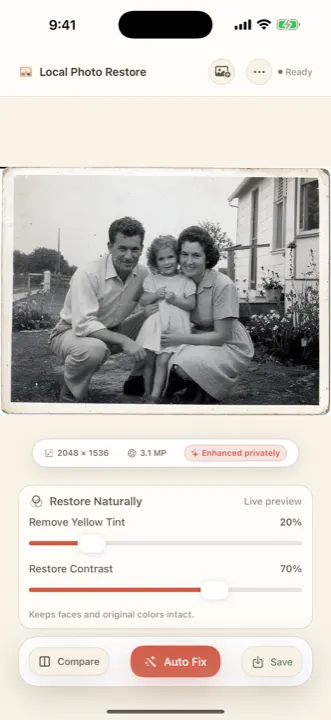
What enhancement does to a black-and-white photo
- Enhance enlarges up to 4x and sharpens edges and texture.
- Restore Contrast recovers the range between highlights and shadows that fading compressed.
- Remove Yellow Tint helps sepia-toned or yellowed black-and-white prints look more neutral, if you want that. Some people prefer to keep the warm tone.
What colorization does
A colorization model looks at shapes and textures and assigns colors that are common for them: green for grass, a skin tone for faces, blue for sky. Clothing, cars, paint, and eye color are guesses. Historical photos often look plausible and wrong at once.
Colorization can still be a lovely way to connect with a photo, as long as the colorized version is labeled as an interpretation and the black-and-white original is kept.
Which to choose
- For an archive, printing, or sharing with family: enhance, keep it black and white, and label it.
- For a colorized keepsake: use a colorization tool, ideally on an already-enhanced copy, and caption it as colorized.
- If you know the real colors (from memory or another photo), manual colorization in an editor gives you control.
Local Photo Restore costs $3.99 once in the U.S. App Store, with no subscription or in-app purchases. iPhone and iPad, iOS or iPadOS 18.2 or later.